Unlock Android Phone

Search: Unlock Android Phones

Thursday, July 16, 2015

15 custom XDA ROMs for your Samsung Galaxy S4 GT-I9500

6:23 PM


The Samsung Galaxy S4 is almost a year old now and only recently it was updated to the Android Kitkat v4.4. However, the amount of bloatware that Samsung gives along with your smartphone firmware is enormous. Most of these ‘free’ apps pre-loaded on the smartphone is unwanted unless you really make use of each one of them. These unwanted apps run in the background, make your phone sluggish and also occupy precious space in your phone’s internal memory.


Most Android phone users suffer with these ‘free’ apps, but some go a step ahead, root the phone and get rid of the bloatware completely. Some even change the original firmware, upgrade or downgrade the Android versions, remove and install their own UI or home launchers or simply delete all unnecessary applications and services to make their phones blazing fast.

As for Samsung Galaxy S4 users, the process of tweaking the firmware is simple, but do note; you will lose warranty (if any). And if you tend to make mistakes while flashing the phone, you might end up with an expensive paper-weight.


Disclaimer: Rooting your phone will lose warranty and can permanently damage your phone. Do this at your own risk.


Here is some good news for Samsung Galaxy S4 users. The XDA Forums have plenty of custom built ROMs foe the GT-I9500 model. While some ROMs are based on stock, others are AOSP-based and a few are completely ported from other devices. Here are a few you can try out.

  1. MIUI
  2. PAC-Man
  3. Lidroid
  4. Omega
  5. WanamLite Fast 
  6. Prism Barebone
  7. NextGen ROM
  8. Crash ROM
  9. Hassan ROM
  10. KingCobra
  11. Sunburn_Kit_Kat
  12. Arrow ROM
  13. Sensonic HD
  14. Phoenix ROM
  15. SmartDroid

Presently, I am using MIUI and am most happy with it. I tried most of the custom ROMs out there and found features that I require on my phone which MIUI offered. Some features are not available across all ROMs. In that situation, it is best to make use of third-party apps to fulfill your needs. I keep changing my phone’s ROMs every week to try out newer ROMs. Personally, Samsung’s official Kitkat update is not satisfactory, so I preferred to roll back to Jelly Bean v4.2.2 and stick to MIUI.
ncncn
Read More ...

Elephone's P8000 boasts 3GB of RAM, int'l LTE support and 4,200mAh battery; may cost just $210

6:09 PM

Beneath the mobile market darlings of Samsung, LG and HTC, many Asia-based vendors are eagerly vying for a slice of the pie. Only yesterday, we heard that Xiaomi may be among the first tolatch onto MediaTek's upcoming deca-core processor with the next-gen Mi Note Pro. Now, more details have emerged pertaining to Elephone's future plans, and with a bunch of top-end specs for a reported $209.99 price tag, the forthcoming P8000 is a device that may be difficult to ignore.


About a month ago, the Elephone P7000 Android handset went up for pre-order. Featuring a 64-bit octa-core MediaTek 6752 processor, expandable memory, fingerprint scanner and Android Lollipop 5.0 out of the box, it's one of a growing number of smartphones competing with the industry's best in most aspects except for price -- retailing at just $229.99.


The P8000 will retain much of what makes the P7000 such an attractive prospect. It'll keep the rear fingerprint sensor, the 5.5-inch 1080p display and 3GB of RAM, and is also set to offer one or two features that are conspicuous by their absence with the P7000. There's no question that MediaTek's 6752 is a very capable chip as far as the running of a smartphone is concerned, but it's also limiting in that it doesn't cater to international LTE support. The newer MT6753 does, however, bring "Worldmode LTE" to the fore, and as such, will allow the P8000 to support myriad 4G networks across the globe.


The P8000 will continue to offer the same 16GB of internal storage of the P7000, along with the safety net of the microSD slot for heavier users. But the other major trump card of the newer, forthcoming variant will be its 4,200mAh battery -- among the highest ever witnessed in the smartphone industry. While it always pays to be cautious in assuming that a higher juice capacity will automatically translate into real-world longevity, it seems very likely that the P8000 will be able to see out a full day's use without too much of a strain.


The only major on-paper disadvange here is that Elephone looks set to include a 13- and 5-megapixel camera combo for the rear- and front-facing shooters respectively. The P7000, by comparison, has a 16-megapixel main snapper and an 8-megapixel effort for selfies. Since the 1.5 Ghz MT6753 SoC of the P8000 is essentially a slightly under-clocked version of the P7000's MT6752, the reduction in clock speed could also be seen as a trade-off, although for the most part, the P8000 does seem a far more appealing device.


According to sources of Neowin, the device will come with a price tag of around $209.99, and should hit the market by the next quarter.


We'll update with specific details on pricing and availability as they arrive.


Elephone's forthcoming P8000 smartphone


ncncn
Read More ...

Android 5.1.1 Stock ROM/Firmware for T-Mobile Galaxy S6 Edge SM-G925T!

4:46 PM

Many of you probably heard that T-Mobile has begun rollin’ out Android 5.1.1 already to many T-Mobile S6 Edge SM-G925T users.


Well, one word of caution, the new Android 5.1.1 firmware locks your bootloaders. But this isn’t a permanent lock from what we are hearing, you may be able to unlock it.

But if you are rooted already, you don’t have to take the dangerous route anyways, just go ahead and flash stock ROM. I’ve been running this all day and Android 5.1.1 seems like it’s a bit faster but Antutu benchmarks tell a different story as I was only able to score around 50K. I am not exactly sure what’s going on but you can always backup your ROM and restore back to Android 5.0.2 if you don’t like it or if you have problems.

To install the Android 5.1.1 stock ROM, make sure to follow these instructions: (You can also watch the latter part of the video above as I walk you through TWRP recovery and installation.)


Now, there’s actually no root available with Android 5.1.1 firmware yet as the system structure is slightly different and there seems to be extra security mechanism that we have not figured out yet (we figure it’s KNOX, what a pain in the ass). Don’t try to flash SuperSU zip file as you will end up in a bootloop.

If you need root or you want to go back to Android 5.0.2, simply reboot into TWRP recovery and restore your backup. If you forgot to make a backup ROM, you can also download Android 5.0.2 stock rooted ROM on our S6 Edge Stock ROMs page. But you will have to do a factory reset if you are going back to Android 5.0.2 from Android 5.1.1 as it will mess up your data partition so please MAKE A BACKUP ROM if you want to keep your settings and not start over from beginning.

Questions? Leave ‘em below!

Credits – XDA <— Please donate to the developer or hit the Thanks button on XDA, thx!

ncncn
Read More ...

Wednesday, July 15, 2015

Top 12 Reasons to Root Your Android Phone

6:26 PM


To root or not to root? That's a question which may puzzle you a lot. Rooting your Android phone gives you the privilege to take full control of any aspect of your Android life. After rooting, you can speed up Android phone, improve battery life, and enjoy apps that require root access, and more. Here, I list out top 12 reasons why root Android phone. Read it and then poll on the reasons at the end of the article.


Reason 1. Remove Bloatware


Every Android phone has many unnecessary preinstalled bloatware. These bloatware drain your battery life and waste space in phone memory. Feel annoyed about the bloatware and want to remove them? Unfortunately, these bloatware are irremovable and you can do nothing unless you root your Android phone. Once rooting, you're able to remove them completely from your Android phone.


Reason 2. Speed Up Your Android Phone to Perform Faster


You can do a lot of things to boost your Android phone without rooting, like install MobileGo.apk file to clean up caches and junk file. However, when your Android phone is rooted, you have the power to do more to enhance performance. You can remove unwanted bloatware, hibernate apps which run in the background automatically. Besides, you enable to unlock some hardware specifications to let hardware perform better.


Reason 3. Enjoy Apps that Require Root Access


There're tons of cool apps in Google Play Store, but not all of them are available for your Android phone. That's because some apps are blocked by manufactures or carriers. The only way to use them is to root your Android phone.


Reasons 4. Make a Full Backup for Your Android Phone


Thanks to Android open nature, you have easy access to content saved on the SD card. That's why you can easily backup music, photos, videos, document files, and even contacts from SD card. However, it's far from enough. When you upgrade to a new Android phone or do factory reset, you must also want to backup app and app data for future using. In addition, some awesome backup apps, like Titanium, are restricted to the rooted Android phones.


Reasons 5. Install Latest Android Version


Every time the latest version of Android (like Android 5.0) comes out, it brings you new features, and improves user experience. However, the latest version is only available for limited flagship Android phones, like Google Nexus Series. Most of ordinary Android phones are just left behind, unless one day the manufacturer makes some changes and gives you the power to do it. It's hard to say when it'll come. Therefore, to be the first one to use the latest Android version with your ordinary phone, you can do nothing but root it.


Reason 6. Block Advertisements to Play Apps Seamlessly


Fed up with the advertisements occurring constantly in your favorite apps, and want to block them all? It's impossible to block advertisements in apps unless your Android phone is rooted. Once rooting, you can install some add-free apps, like AdFree, to block all advertisement to play your favorite apps seamlessly.


Reason 7. Improve Battery Life


As I mentioned above, manufacturers and carriers put many preinstall but unnecessary apps on your Android phone. These apps run in the background and drain battery. To save and improve battery life, using custom ROM is a great choice. To make it, rooting Android phone is the first step you should take.


Reason 8. Flash a Custom ROM


Once your Android phone is rooted, you're able to unlock bootloader to flash a custom ROM. Flashing a custom ROM brings a lot of benefits for you. It changes the way you use your Android phone. For example, with a custom ROM, you can install some ad-free apps to improve battery life, upgrade later versions of Android to your Android phone which doesn't have it yet.


Reason 9. Optimize System


On your rooted Android phone, you can do a lot of things to optimize system. Fonts' folder is located at /system/fonts. Once you get root access, you can download your favorite font from internet and change it here. Besides, in /system/framework save some files which can be changed to optimize system, like display percentage of battery, use transparent notification center, and more.


Reason 10. Install Apps on SD Card to Free Up Space


Normally, apps are installed in the phone memory of your Android phone. The space of phone memory is limited. If your installed apps run out of your phone memory, your phone becomes slow. To avoid it, rooting is a great way for you. By rooting your Android phone, you'e able to install apps on SD card to free up phone memory space.


Reason 11. Use Gaming Controller to Play Games on Android Phone


Is possible to play game apps on your Android phone by using a gaming controller? Yes, of course. You can easily connect your gaming controller to your rooted Android phone for gaming playing wirelessly with Bluetooth. Read more about how to make it.


Reason 12. Truly on Your Own Android Phone


The last reason to root Android I want to say is that with root access, you're the only owner of your Android phone. Because Carriers and manufacturers always to try to control your Android phone by installing preinstalled apps. However, by attaining root access, you can block away the connection between your Android phone and carriers and manufacturers, and truly own your Android phone.

ncncn
Read More ...

Best 5 Android Root Tools to Get Root Access with or without Computer

5:30 PM


In this part, I recommend best 5 root software for Android, which enables to root your phone or tablet from computer easily and conveniently.

1. Wondershare MobileGo
Wondershare MobileGo is one of the best root software for Android you have ever seen. It’s an easy-to-use solution for rooting your Android phone or tablet in 1 click. Besides, it’s compatible with massive Android phones and tablets produced by Samsung, HTC, Sony, Motorola, LG, HuaWei, Acer, Google and more.

Pros
Fully compatible with Android 2.1 and up.
100% safe and secured, no risk.
DOES NOT void warranty.
Support over 3, 000 Android phones and tablets.
Backup/restore import data before/after rooting.
Manage rooted Android phone or tablet in one place.
Free.

Cons
Not offer unroot function for the time being.


DownloadWindows Version


3 people have downloaded it


2. Kingo
Kingo is another free software for Android rooting. Like Wondershare MobileGo, it also enables you to root your Android phone or tablet in 1 click. It supports Android 2.3 up to Android 4.2.2, and works well with HTC, Samsung, Sony, Motorola, Lenovo, LG, Acer, and so on.

Pros
Fully compatible with Android 2.3 up to Android 4.2.2.
Enable to remove root at any time.
Free of charge.
Safe and risk-free.

Cons
Not support Android 4.4 or up.


3. SRSRoot
SRSRoot is a little rooting software for Android. With it, you can root your Android phone or tablet, as well as remove root access with a single click. It’s free of charge and provides you with two ways to root. One is Root Device (All Methods) the other is Root Device (SmartRoot).

Pros
Work well with Android 1.5 up to Android 4.2.
Support unroot.

Cons
Not support Android 4.4 or up.


4. Root Genius
Like its name suggests, Root Genius is a smart Android root software created in China. It makes Android rooting simple, easy and fast.

Pros
Support more than 10,000 Android phones.
One click to root, simple an easy.
Enable to flash custom ROM, and remove built-in-apps after rooting.
Compatible with Android from 2.2 to 4.4.
Free

Cons
Not offer unroot function for the time being


5. iRoot
Just like Root Genius, iRoot is another powerful root software created by Chinese people. Just one click, and you can be the master of your Android phone or tablet.

Pros
Support thousands of Android phones.
High success rate of rooting.
Free of charge.

Cons
Not offer unroot function for the time being.


Part 2. Best 3 Root Apps for Android to Root Android without Computer
In this part, I recommend best 5 root software for Android, which enables to root your phone or tablet from computer easily and conveniently.

1. SuperSU Pro
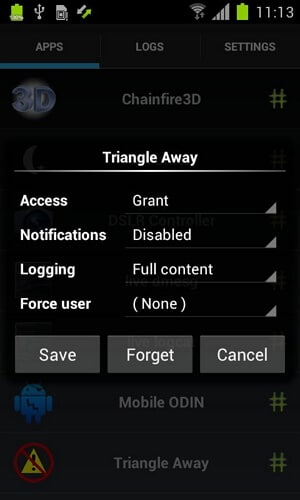
SuperSU Pro: SuperSU (Stands for super super user) is a root access app for Android, which can grant or deny access to root whenever any app requests root access. It will record your choice and allow those apps to access root without prompting. It also makes a log of root accesses.

Features
Root access prompting, logging, and notifications.
Temporarily unroot or completely unroot your phone or tablet.
Work even when Android is not properly booted.
Wake on prompt.
Work as system app.
Accesses it by dialing *#*#1234#*#* or *#*#7873778#*#* from the dialer even it is hidden from the launcher.
4- Selectable themes Dark, Light, Light- Dark Actionbar, and Default device.
5- Selectable icons for the app.

Advantages
Smooth app, no extra load on CPU.
No advertisement.
Can be hidden.
Small in size, just 2.2MB space.

Disadvantages
You cannot lock the app with a pin, but this feature is added in the Pro version which is a paid version of this app.

Download SuperSU Pro from Google Play Store>>


2. Superuser

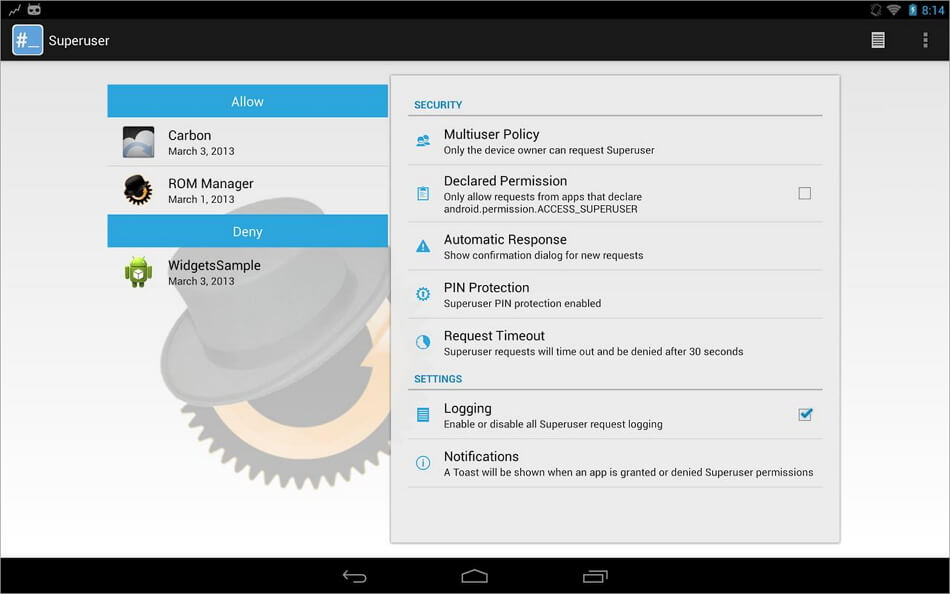
This app does almost the same as SuperSU. With this app you are going to get PIN protection for the fee, which is available after paying for it in the SuperSU.

This app is a little heavy compared to SuperSU, when it comes to CPU uses. The interface was not that good when the beta version was launched, but the official version is fine and runs smoothly. The developer of this app has announced that this app will always be free and no paid version will be launched ever.

Features
It provides multi user supports (android 4.2 onwards).
It is a totally open source project; you can find the source code at github.
PIN protection. It asks for PIN whenever it encounters a root access request.
Every app can be configured separately.
Root access prompting, logging, and notification features.

Advantages
It can handle multiple root access requests at a same time.
Updates very frequently in the marketplace, hence you will get added support to all the new Android versions almost instantly.
You can set the duration of request before they time out.
If you are looking for a free app, then you cannot find any app better than this one. You will never feel that you make a compromise by not going for a paid app.
No security voids in this app, everything is transparent.

Disadvantages
This app is a little bit heavy in terms of CPU uses
The interface could be made better, but this can be of personal preference. If I don't like the interface doesn't mean you will feel the same.

Download Superuser from Google Play Store>>


3. Superuser X [L]
It is an Android root app designed for experienced people or developers, newbies or amateurs are advised to stay away from this app. This app permits all the apps to access roots once the binary file gets installed, you can also remove this app after that. Hence, you won't get any pop ups asking for the permission to access the root, those pop ups might be irritating for you if you use plenty of rooted apps. Using this app you can stay away from that irritation.

Advantages
You will be getting the root access even if this app is uninstalled or gets corrupted once the binary file gets installed.
You can also uninstall the app after installing the binary file. Hence, you can save memory space.
Gives root access to every app without prompting for permission which can save your time, memory and CPU.

Disadvantages
The app is designed for developers and experienced user, if you feel secure by giving the root access by prompting for it, then the app is not for you.
If you are in a habit of downloading and installing random rooted apps from the web, then the app is not for you. You might brick your phone in that case.
Free version of this app shows some ads, to get rid of that, you should purchase the paid version.
This app is currently available for those Android devices which are running on the ARM processor.
The app is based on command line interface. Graphical user interface is not provided.

Download Superuser X [L] from Google Play Store>>
ncncn
Read More ...

Tuesday, July 14, 2015

UNLOCK BOOTLOADER & INSTALL CWM RECOVERY ON ANDROID ONE [GUIDE]

6:28 PM
Want to unlock the the bootloader & Install CWM Recovery on Android one device like Micromax Canvas A1, Karbonn Sparkle V and Spice Dream Uno. There are so many benefits of install recovery on the android smartphone, once the recovery is installed you can take the nandroid backup of your phone and install the custom ROMS. If you are the owner of the the Android one device like Micromax Canvas A1, Karbonn Sparkle V and Spice Dream Uno, then here is the guide which you can follow on your phone to install the CWM recovery. To install the recovery on your phone first you have to unlock the bootloader of the phone. The guide is pretty simple and takes only few minutes to complete.

This guide is only for the Android one device, don’t try this method on any of other android device. You will lose all data of your’s after this, so do take the full backup of your phone and read the instruction very carefully.


UNLOCK BOOTLOADER & INSTALL CWM RECOVERY ON ANDROID ONE

Step 1. Download the ADB and fastboot drivers here and extract the folder on your desktop.

Step 2. Switch off your phone and boot it in bootloader/fastboot mode. To do this Hold Volume Up Key + Volume Down Key and then press the Power button.

Step 3. Now open the ADB folder on your desktop and Press Shift key + Right click on any empty space inside the folder, and select Open command window here.

Step 4. Execute following commands

fastboot oem unlock

fastboot format userdata

Now the bootloader is unlock and next step is to install the CWM recovery.

Step 5. Download the recovery.img from here and paste the recovery.img file in the ADB folder. (The same folder that your downloaded in step 1)

Step 6. Reboot the phone into bootloader/fastboot mode. To do this open the ADB folder on your desktop and Press Shift key + Right click on any empty space inside the folder, and select Open command window here. And enter the foloowing command.

adb reboot bootloader

Step 7. Now your phone is booltloader mode. Flash the recovery image and reboot

fastboot flash recovery recovery.img

fastboot reboot


Now the phone will reboot and CWM recovery is installed on your Android One device.ncncn
Read More ...

Best Android Smartphones As Of June 2015: Galaxy S6, Galaxy S6 Edge, HTC One M9, LG G4, And More

5:33 PM

The Galaxy S6 Edge has been named one of Samsung's best designed smartphones to date. It comes in various color options such as Gold Platinum, White Pearl, Black Sapphire and Green Emerald.
(Photo : Samsung)
While it is true that the smartphone industry is becoming increasingly 

crowded, it is still nice to know how manufacturing companies manage to constantly come up with innovative ideas and iconic designs for their devices.

These include popular names such as Samsung, HTC, LG, Google, Motorola and Asus. With the launching of each one's iteration of mobile devices, there's no doubt that these companies are the reasons why Android OS has become very popular among smartphone users.

Here is a quick roundup of the best Android smartphones as of June 2015.

Samsung Galaxy S6. The Galaxy S6, Samsung's latest flagship, boasts of an excellent camera, premium look and feel, superb display, wireless and fast charging options, and powerful performance. It comes with Android 5.0 L with TouchWiz right out of the box and runs on an Octa-core Exynos 7420 chipset. Other notable features include a RAM of 3GB, 2,550mAh battery, 1440 by 2560 screen resolution; Samsung Pay and IR Blaster. It is available in a number of color options such as Gold Platinum, White Pearl, Black Sapphire and Blue Topaz. Perhaps one of its outstanding features is the 5.1-inch screen that is absolutely brilliant and one of the best screens that is available in the market to date. Moreover, the screen looks good in every viewing angle which makes the device ideal for sharing content such as videos and photos.


(Photo : Samsung)

Samsung Galaxy S6 Edge. The Galaxy S6 Edge launched together with the Galaxy S6 and has been named as one of Samsung's best designed smartphones yet. It boasts of a wraparound screen which makes it the designer version of its co-flagship. Not only is it known to have the first commercial dual-curved display, it is also noted for having one of the best screens that a phone can have today. While it shares almost every major features and even every color iteration with the S6, the S6 Edge has the look and feel that makes it a headturner. Of course, its more premium design features would also mean that it has a higher price tag.


HTC One M9. The One M9 continues the legacy that was started by its predecessors which include an impressive metal design, premium speakers and a type of display that's sharp and bright. It's built with the latest Android OS version along with the new Sense 7 software. It's one of the remaining flagship devices that features an expandable storage. Moreover, U.S. customers are given the unique one-year replacement program with every purchase of the device. Its most notable feature is the speedy, state-of-the-art Qualcomm Snapdragon 810 processor and its front and rear cameras that have been upgraded in order to address the shortcoming of its predecessor.


(Photo : HTC I Google Plus)

LG G4. The G4 boasts of a great 5.5-inch display which makes it larger than most phones in the market when it comes to body size. With a leather-backed design option, it has earned itself a classic visual reputation that makes it a standout device. One of its unique design features is the absence of buttons on the sides. These are placed instead on the rear to the upper center which is almost similar to that of the G3. Other important features include an IPS Quantum Display, a resolution of 2560 by 1440, slots for micro SD and mini SIM, Qualcomm Snapdragon 808 processor and 3,000mAh battery.


(Photo : LG)

Google Nexus 6. The Nexus 6 is a phablet that is designed to showcase the latest version of Android 5.0 Lollipop. It is taller, wider, and thicker than the Samsung Galaxy Note 4 and even the iPhone 6 Plus. It has a larger screen which is around 6 inches diagonal. It's also a little bulky and looks like a blown-up version of the Moto X. Battery life, based on phone standards, is deemed as good. The Nexus 6 features a 3220mAh battery which can last one day and a half on regular use. Heavy usage would stretch it to a mere 14 hours while lighter use could make it last up to two days. Moreover, users can also add few hours of charge in a span of 15 minutes by using a fast charger.
(Photo : Motorola)
Motorola Moto X. The Moto X features a sharp 1080p screen, a quick-acting quad-core processor, state-of-the-art software and gesture features, and design options that are highly customizable. Just like its predecessor, the device has a curved backing which makes it easy and comfortable to hold. Other features include a 5.2-inch display, a dimension of 5.54 by 2.85 by 0.39 inches, weight of 144 grams, Android 4.4.4 KitKat, 13MP rear camera and 2MP front camera. Of course, it has the usual bundle of Google's popular apps such as Gmail, Drive, Quickoffice, Maps and the Chrome Browser.
(Photo : Motorola)
Asus Zenfone 2. The Zenfone 2 is known for its smooth performance, a clean feature-filled UI, and an impressive low-light 13MP rear camera. It's built with a sharp and bright screen of 5.5 inches. It actually comes in 2 varying models with 5 different variants that include three 5.5-inch versions and two 5-inch options. Each model comes with a unique price point, built-in storage capacity and RAM. Design-wise, the phone's rear delivers a brushed metal look although in reality, it's actually made of plastic material. It resembles the original Zenfone and also features the familiar touch-sensitive menu keys. Other features include 2.3GHz quad-core Intel Atom Z3580, 32GB storage, 4GB RAM and 3,000mAh non-removable battery.
(Photo : Asus)
ncncn
Read More ...

Install CWM Recovery on any Android device in a minute

4:54 PM

The other days we have discussed about how to flash a custom ROM on an Android based tablet or smartphone and as you already know, there are some pre requisites to complete before being able to update with an unofficial release of the Android system. That’s why today I will teach you how to install a custom recovery image – CWM recovery – on your Android powered handsets (the step by step guide will work for both tablets and smartphones). So, if you are looking forward in tweaking your phone, do read and apply the following lines.


First of all, you should begin this guide by asking yourselves: do I really need to install a custom recovery image on my Android device? In order to answer to that question, first read the things mentioned during the following list:
A custom recovery image can be installed only on a rooted handset. Therefore, before applying this tutorial, you need to learn how to root your smartphone / tablet.
The warranty of your handset will be voided – because you need to unchain the OS of your phone (as you know the root operation isn’t official and that’s happening when you are applying unofficial procedures).
Your device is already featuring a recovery image; the stock recovery that comes pre installed on all the Android devices isn’t useful though especially if you are looking into tweaking your handset.
The custom recovery image can be used when trying to flash .zip files from the SD card (such as custom ROMs), when trying to perform maintenance, optimization, customization, backup, restoration, hard reset and a lot more operations that usually aren’t available.

So, you should learn how to install a custom recovery only if you agree with the up mentioned aspects. Furthermore, now you should be asking yourselves, why CWM recovery? Well, here the answer is simple: CWM recovery, orClockworkMod Recovery, is one of the most popular custom recovery available for the Android system. The tool is being available on Google Play (the official variant of the app only) and the same is suitable with almost all the Android powered devices available on the market. Furthermore, CWM recovery comes with great features and capabilities and will smoothly run on your handset.

Therefore, if you had decided to install CWM recovery on your smartphone / tablet, then begin the flashing operation with the preparation tasks. In this way you will be able to avoid the unpleasant situations and also your phone will be prepared for the installation procedure.

First, you need to know that not all the devices are being supported by the official CWM recovery tool. So, before installing the same, make sure to check if your device is included on the official CWM recovery support list.
Then, also before starting the flashing operation, backup the data, personal info, saves and accounts from your handset – the data might get corrupted and you are risking in losing all of your personal info.
Remember to root your phone first.
If you are applying the unnoficial CWM recovery, then you will have to use a computer, your device and its USB cable – you will have to download a suitable version of CWM recovery that can be applied on your phone / tablet.
Don’t complete things by yourselves without consulting my directions as you can end up in bricking your device.
How to Install CWM Recovery on any Android device
The first thing to do is to download the CWM recovery tool.
So, take your device and go here.
Get the app and install the same.
Open CWM recovery.
From the pop-up menu select “flash CWM recovery”.
Use the recovery menu for performing the operation you need.
You can access CWM recovery in a different way too; all you have to do is to turn off your phone. Then, you need to reboot by pressing (usually, but on some devices the buttons that need to be pressed are different) Power, Volume Up and Home buttons at the same time.
That’s it; you can reboot into Android by selecting “reboot system now”.

Update:

If you have installed CWM recovery on your Android device, but you don’t know how to enter the same, then here is a detailed list that can be used in that matter:
Enter recovery mode on Galaxy Note 2
Enter recovery mode on Galaxy Note 3
Enter recovery mode on Galaxy S3
Enter recovery mode on Galaxy S4
Enter recovery mode on HTC One
Enter recovery mode on LG G2
Enter recovery mode on Moto X
Enter recovery mode on Moto G
Enter recovery mode on Xperia Z
Enter recovery mode on Google Nexus 5


Good job; you have easily installed the official CWM recovery tool on your Android based device. If you had encountered problems while trying to flash the custom recovery image, contact us and we will try to assist you as soon as possible. Also, stay close for further tutorials as we are updating you with fresh and useful step by step guides daily.ncncn
Read More ...

Best, Most Popular Custom ROMs For Android, And Why You Should Try Them Out

4:40 PM

One of major reasons why smartphone enthusiasts opt for Android over other mobile OSes like iOS and Windows Phone 8 is because of Android’s relatively open nature. It allows users to customize every facet of their phone while iOS doesn’t, even with powerful theming systems like DreamBoard and WinterBoard in place. Android enthusiasts are often heard installing “Custom ROMs” on their devices; these modified versions of Android OS are cooked up by passionate and dedicated developers in their free time and we’ve mentioned some of the most popular ones after the break.


First things first, it is basically a herculean task to sift through all the ROMs on all Android devices. Most ROMs are device specific but there are a few popular custom ROMs which work across multipledevices.

1. CyanogenMod


CyanogenMod is, hands down, the most popular custom ROM available on Android. This is because of its support for an increasingly wide variety of devices as well as a plethora of neat features not included in stock versions of Android such as lock screen gestures, browser incognito mode, support for themes, DSP Equalizer, FLAC support etc. And to top off the great features which come with the ROM itself, CyanogenMod is very stable and zippy compared to the stock Android offering.

CyanogenMod 11, which is the latest version of the ROM, is supported by a wide number of devices, most of which are in their stable state and some are still in experimental phases. If you’re interested in giving CyanogenMod a whirl, simply point your browser to: get.cm

2. MIUI


MIUI (pronounced mee-yoo-eye) is amongst the most popular custom ROMs available on Android. While it does support plenty of devices, these are notably less varied than devices which CyanogenMod supports. MIUI is known for its distinctive, and surprisingly flat look (which is, arguably, the best in the business), enhanced notifications, smart dialing and enhanced apps for Music, Gallery and Camera.

MIUI is currently sitting at v5, and is based on Android 4.1 – 4.4, depending on the device you’re installing it on. For more information on MIUI ROM, point your browser to: miuiandroid.com

3. DarkyROM


DarkyROM is a more manufacturer-specific custom ROM. They support the latest and greatest Samsung Android devices by taking the stock TouchWiz UI, removing some of the bloatware that comes with it and then adding their own features.

For more information regarding DarkyROM, simply point your browser to: darkyrom.com

4. Slim ROM


Slim ROM offers users a lot of performance without any sort of sacrifices. Currently available for a very wide variety of devices, Slim ROM is by far the speediest and best performing ROM we’ve come across.

For more information regarding Slim ROM, simply point your browser to: slimroms.net

5. Cataclysm ROM for Nexus 5


If you’re looking for a complete stock and rooted experience on your Nexus 5, then Cataclysm ROM for Nexus 5 is the way to go. It’s the most stock custom ROM you’ll ever come across and comes with some added features of subtle customizations which make the whole experience of using your Nexus 5 a tad bit better. Download it from here.

6. Device Specific, AOSP-Based KitKat ROMs


Last, but not least, on our list are device-specific, Android Open Source Project-based ROMs for Android 4.4 KitKat – the latest and, perhaps, most significant update to Android. These ROMs are as clean as can be, no bloatware, no extra apps, just the purest Android experience available. Plenty of the top smartphones have their own KitKat-based ROMs available right now and, some of them are somewhat stable with a few bugs here and there.ncncn
Read More ...

Monday, July 13, 2015

Top 7 Best Custom ROMs for Your Android in 2015

7:20 PM
When you buy an Android smartphone, you will love it but after a few weeks maybe, you will start feeling as if you are not using it to its full potential. You might not like the user interface of your device at all and that’s very normal because most of the Android devices come with a stock ROM of the manufacturer and you might want to tweak the user interface completely. So that’s why we usecustom ROMs on Android. And if you want to know about the best ones out there then we have made a list of the best custom ROMs for Android in 2015.

Why do you need a Custom ROM? The answer to this question is very simple. The stock ROM that comes with your device doesn’t give you much room for customization and when you install a custom ROM, you will be able to change the look of your device completely. Moreover, by using a custom ROM, you will be able to get the current version of Android OS even when it’s not officially released by your device’s manufacturer.


But one thing that you need to know before downloading a custom ROM for your device is that your Android smartphone or tablet must be rooted. So make sure to root your Android and then you can download one of these best custom ROMs for Androiddevice.
Best Custom ROMs for Android Device
1. CyanogenMod


CyanogenMod will be my number one choice whenever I will need to install a custom ROM on my device. The reason for it to be on top is the amazing features the ROM offers – it comes with a great user interface and there are awesome developers supporting the ROM.


It is the most popular custom ROM for Android, the most stable and packed with a lot of features and customization options and amazing themes. The ROM is so popular that it comes as the default ROM in the new Yu Yureka smartphones. With the one-clickinstaller option, you can easily install CyanogenMod ROM on your smartphone without any tech knowledge.

If you are looking for a way to customize your Android device the way you want and keeping it stable at the same time then CyanogenMod is the best custom ROM for you.

CyanogenMod Official Site
2. ParanoidAndroid


If there’s any ROM out there capable of competing with CyanogenMod then it isParanoidAndroid ROM. The reason is simple as it also comes with loads of features, is updated frequently and the user interface is awesome.


ParanoidAndroid is considered as one of the best custom ROMs for Android as it allows you to apply several tweaks to your smartphone, changing the color scheme of the status bar and navigation bar of any app and giving your smartphone a complete makeover.

With the Hybrid Mode, you will be able to set apps to have the layout of the tablet on your smartphone. You can set privacy using the App Privacy feature, hide the status and navigation bars, HALO feature to access apps easily and the floating mode allows you to open a mini-version of any of your recent apps without leaving the current app.

ParanoidAndroid Official Site
3. AOKP Custom ROM


The third ROM on our list is AOKP – Android Open Kang Project. If you love stock Android then you might want to install AOKP to your Android device.


You will be able to find all the settings of the ROM in the ROM control tab the Settings Menu. The list of features is pretty much awesome as well – you can easily change the height of the navigation bar according to your needs, you can make the navigation and status bars transparent, you can pin your apps and shortcuts to the navigation bar and even add shortcuts to the navigation ring.

You can create a Ribbon of apps that can be pinned to notification menu or the lockscreen and also appears when you swipe from a certain side. You can also create a custom vibration for different tasks and you can even set various BOOT animation from Settings menu. Plus there are lots of other features as well.

AOKP Official Site
4. Slim Bean


Slim Bean is considered as the simplest custom ROMs for Android because it focuses more on providing a simple user interface without bugs to its users. Not only the interface, but when you use the ROM, you will find it a lot easier to work with it.


The best part about Slim Bean ROM is that it lets you update to the latest Android version with just one click and you won’t have to worry about downloading new ROMs. This custom ROM uses a custom Kernel as the processor so that you get better performance from your device and a better battery backup.

Slim Bean Official Site
5. PAC-man ROM


PAC-man ROM is considered as the all-in-one custom ROM because it packs the features of the best custom ROMs like CyanogenMod, ParanoidAndroid and AOKP and provides you with the best of everything.


The interface of the ROM is amazing and it is a stable ROM so you won’t face much problem with it. Since PAC-man packs the power of the three best ROMs for Android, I would surely recommend you to give it a try at least once.

PAC-man ROM Official Site
6. Carbon ROM


Carbon ROM can also be considered as a great custom ROM for your Android device. Not saying that it’s as awesome as the other ones above, but it sure comes loaded with some really amazing features. It’s an AOSP-based Android ROM and you can have some features like PIE, Chronus Clock Widget, various lockscreen options and customizable hardware as well as the software keys plus a lot more features. You should try out this ROM for a change.


Carbon ROM Official Site
7. Vanilla Rootbox


Vanilla Rootbox is another ROM that packs the features of both CyanogenMod as well as AOKP Custom ROMs. You can even get OTA updates when you have this ROM installed on your Android device so it’s worth a try if you are looking for a change in your smartphone.


Vanilla Rootbox Official Page

So these were some of the best custom ROMs for Android device that you can use in 2015. I hope that I gave you the best ones but if you think that there is some other awesome ROMs out there then please share them with us via the comments section below.ncncn
Read More ...

Contact Form

Name

Email *

Message *

Latest NewsShow More >>